Virtual Machine
Create (or Select) a CloudSpace
If you already have a CloudSpace to host the VM, you can reuse it, otherwise:
- Follow the whitesky.cloud guide to create a CloudSpace:
https://try.whitesky.cloud/docs/en/Cloudspace/ - Make sure the CloudSpace:
- Is in the desired region.
- Has sufficient quota for the VM (CPU, RAM, disk).
- Has access to the internet
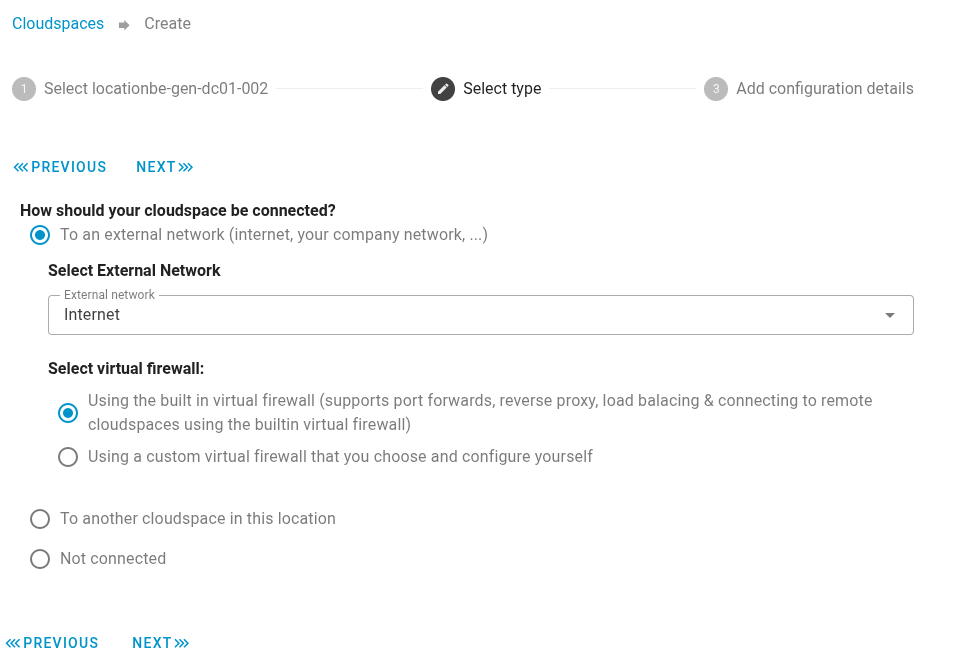
Select the cloudspace:
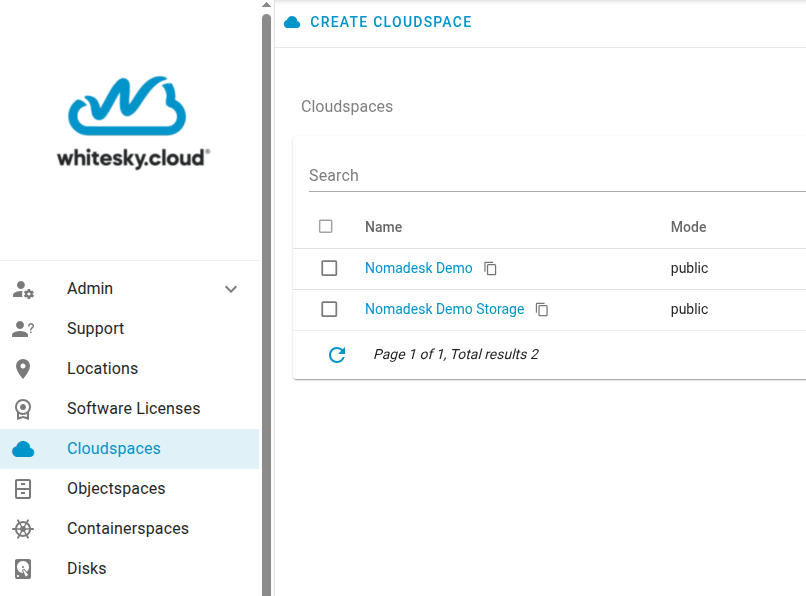
Create the Nomadesk Virtual Machine
Now create a VM in the Cloudspace and attach the Nomadesk ISO. Make sure the Cloudspace that is/was created has access on the internet
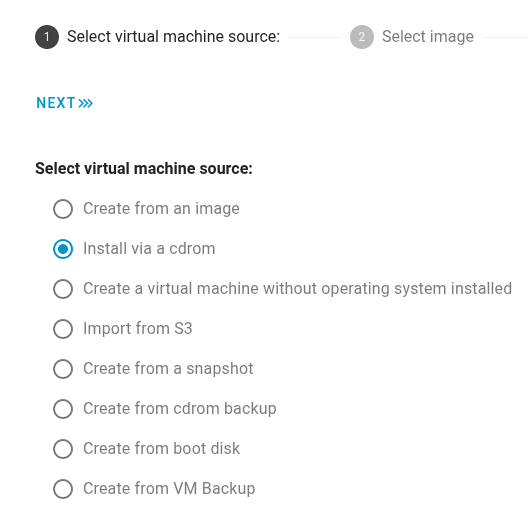
- Follow the steps below to install using the Nomadesk ISO
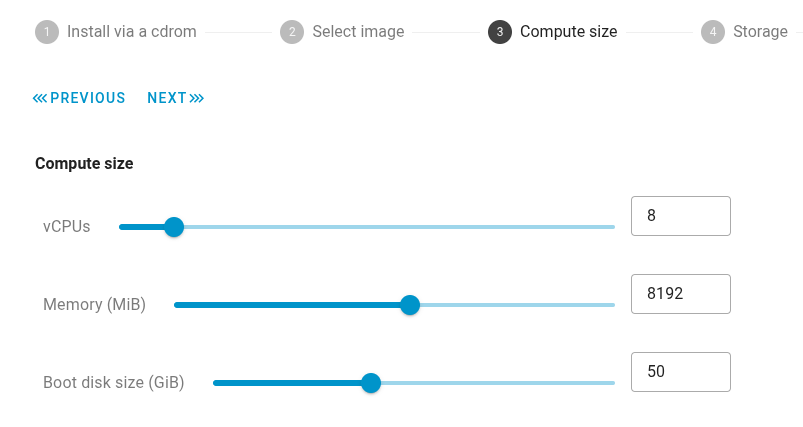
For more detailed documentations, see the whitesky.cloud docs: https://try.whitesky.cloud/docs/en/VirtualMachine/ - Use at least the minimum requirements from Nomadesk
- Key points when creating the VM:
- Boot source / ISO: select the Nomadesk ISO you uploaded.
- Disk size: at least the Nomadesk minimum (50GB)
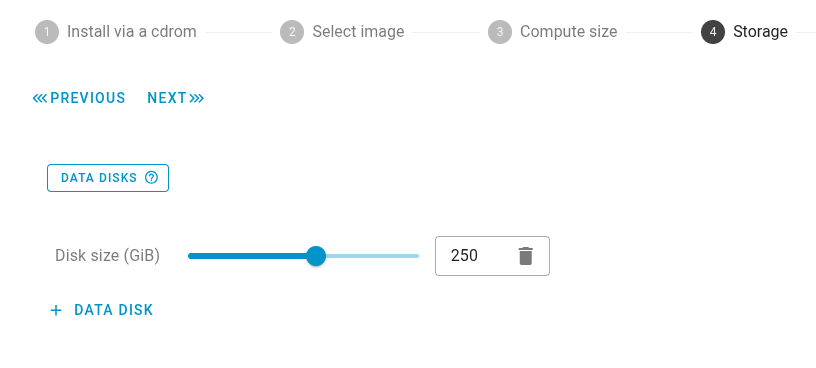
- Data disk: when using filesystem storage, add a second disk for storage
- Network: attach it to a network that has internet access
- Hostname: set something that matches or fits with your planned DNS name
Installation Source:
Resource allocation:
Optional data disk, Object Storage is recommended
Next, continue to configure DNS so the appliance has a resolvable hostname and can get a valid certificate.